
PetNid feature
How to add a family member in PetNid
Give someone you trust access to the same pet profile, records, and care history in a few taps.
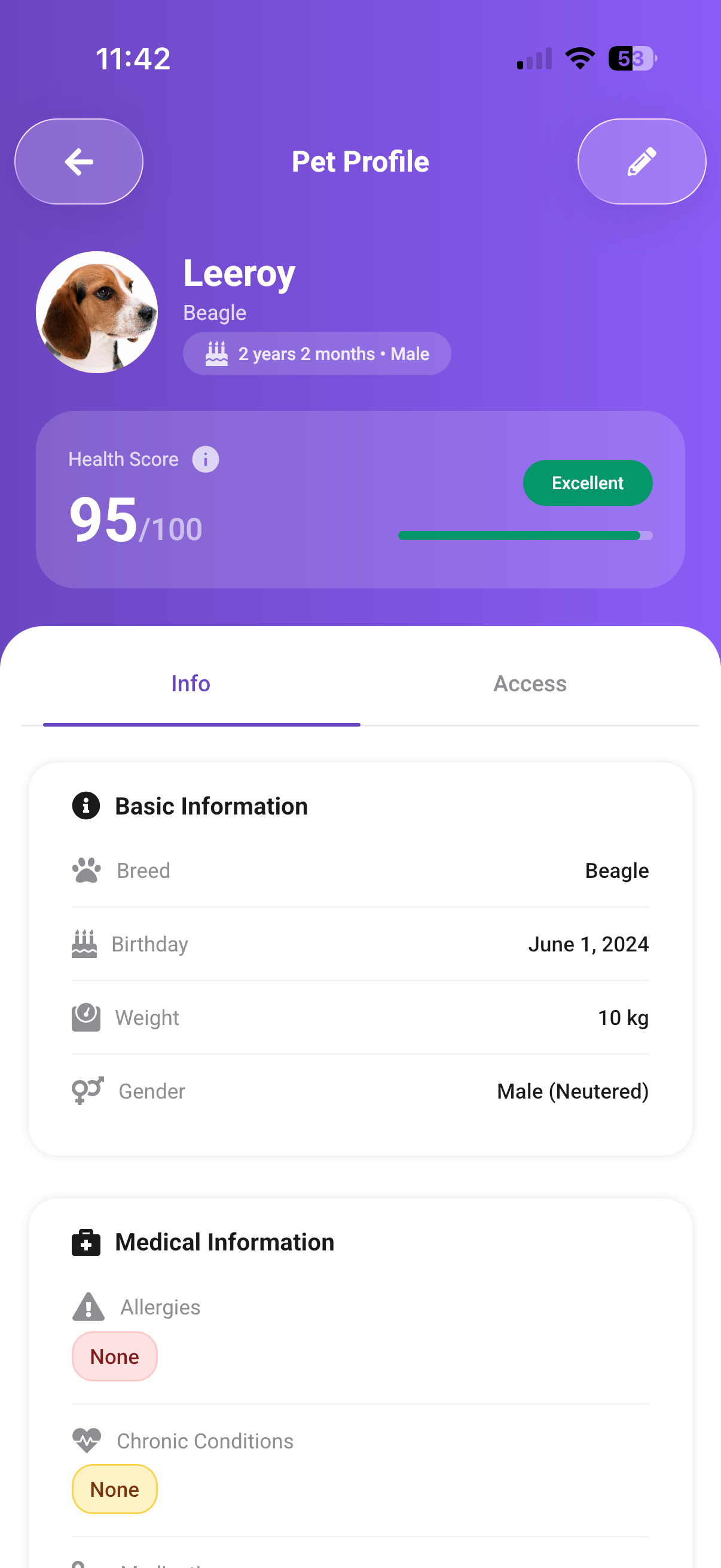
In the PetNid app
Open Access
Open your pet's profile and switch from Info to Access. This is where you can see and manage everyone who shares the profile.
Tap the highlighted Access tab
Prefer written instructions?
- Open Access: open your pet's profile and choose the Access tab.
- Add a family member: tap Add Family Member below the current members.
- Set up the invite: confirm the pet, link expiry, and whether the link can be used once or more than once.
- Share it: create the invite link, then send it through a messaging app or show the QR code.
Quick answers
What can a family member see?
They join the shared pet profile and can use its care information and health history. Their AI check limits remain separate from yours.
How can I send the invitation?
Send the invite link through WhatsApp, Telegram, SMS, or another messaging app. If you are together, the family member can scan the QR code instead.
Can I remove access later?
Yes. Return to the Access tab in the pet profile to manage the people who have access.
Care is easier when everyone is in sync
Share one pet profile with the people who help care for your pet.